How to import creators into Leewou
Import creator spreadsheets into Leewou with CSV or Excel files, choose a target list, and understand duplicates, failures, and next steps.
If you want to import creators into Leewou, the good news is you do not need to rebuild your shortlist by hand. The import flow is built for teams that already have creator handles or profile URLs in a spreadsheet and want that research inside a working list fast.
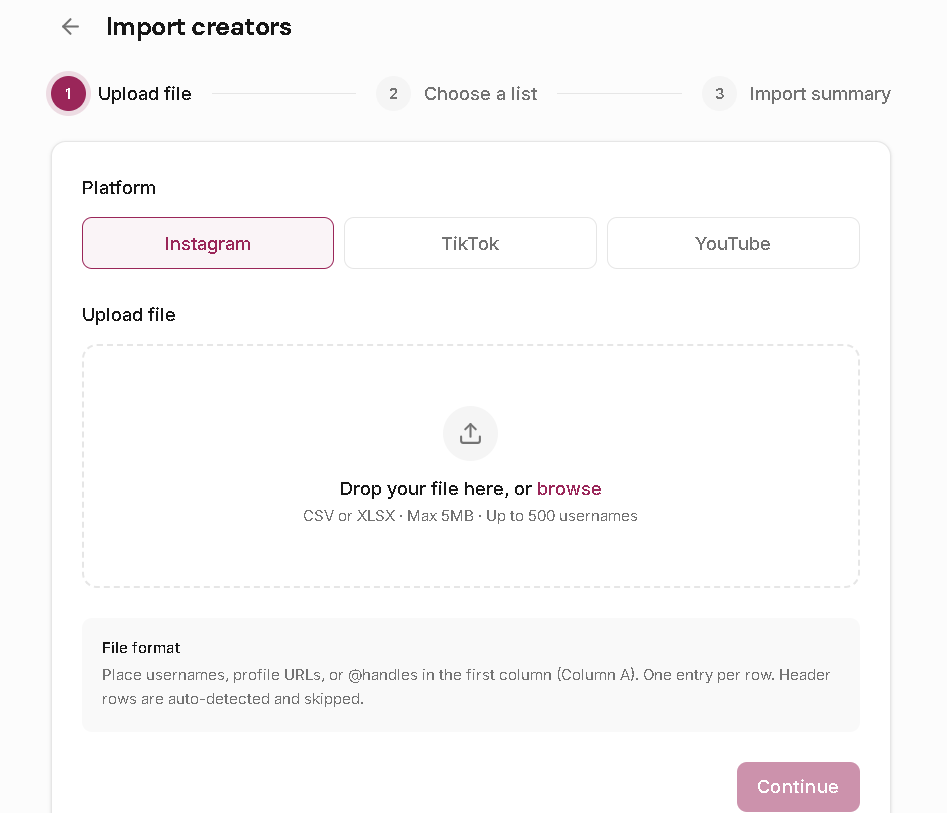
The import tool lives under Manage and walks you through three steps: upload a file, choose the destination list, and review the import summary. It is a profile-focused import, so it is best for moving creator identifiers into Leewou rather than migrating a full CRM schema.
What the import tool expects
The import flow is stricter than a free-form spreadsheet cleanup, which is a good thing. A clean file usually imports without drama.
- Choose one platform per import: Instagram, TikTok, or YouTube.
- Upload a CSV, XLSX, or XLS file.
- Keep the file at 5 MB or less.
- Put usernames, profile URLs, or @handles in the first column, one entry per row.
- Header rows are auto-detected and skipped.
- The upload screen is designed for up to 500 usernames per file.
The current import flow focuses on creator identifiers in column A. It does not advertise spreadsheet mapping for notes, labels, statuses, or other custom fields, so plan to add that context after the import inside the list view.
How to import creators into Leewou
Once the file is clean, the actual import takes only a minute.
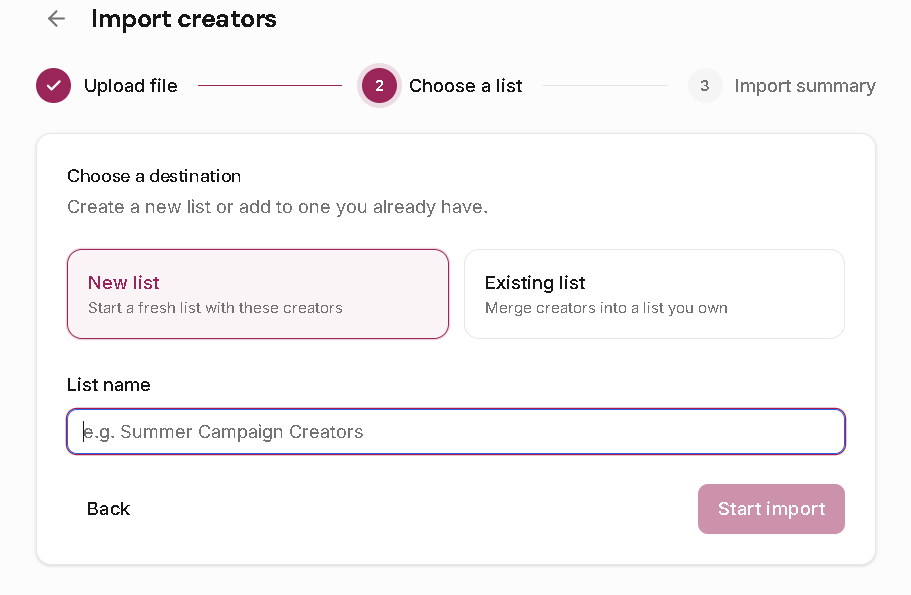
- Open Manage in the left sidebar, then click Import from the Lists area.
- Choose the platform that matches the file you are uploading.
- Upload the spreadsheet and continue to the next step.
- Choose whether the import should go into a new list or an existing list.
- Start the import and wait for the summary screen to begin polling progress.
- When the job finishes, click Go to list to review the imported creators.
Read the summary before you move on
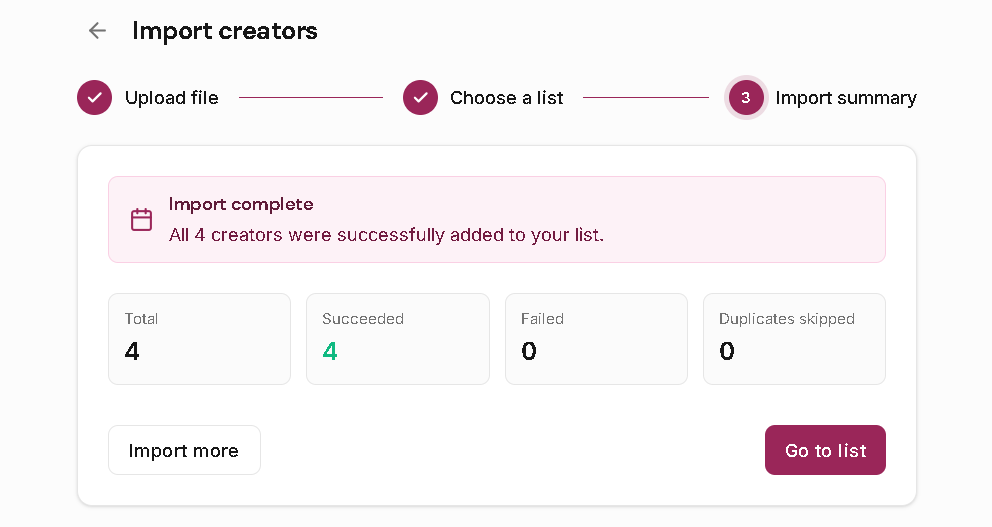
The summary screen is not just a progress bar. It tells you what actually happened to the file.
- Total shows how many entries the job tried to process.
- Succeeded shows how many creators were added to the target list.
- Failed shows how many entries could not be processed.
- Duplicates skipped shows entries that were already present and were not added again.
If there are failures, expand the error list and you will see the usernames plus the reason each one failed. If the job is still processing and you need to stop it, the summary view also includes a Cancel import action.
What happens after the import
Once the creators are in a list, the work shifts from file cleanup to list management.
- Open the target list and review the imported creators in one table.
- Use statuses, labels, notes, and assignees to turn the imported batch into something your team can action.
- Check failed usernames separately and fix formatting or profile issues before you re-import them.
- Use Import more if you want to keep bringing in batches without leaving the flow.
Common mistakes that slow imports down
- Mixing Instagram, TikTok, and YouTube entries in one file even though the import is platform-specific.
- Putting usernames or URLs outside column A.
- Uploading a file that is too large or in an unsupported format.
- Expecting duplicate rows to create duplicate list entries.
If your source sheet is messy, split it into smaller platform-specific files first. That usually gives you a cleaner success rate and makes failed rows easier to fix.
FAQ
Frequently asked questions about imports
These are the questions teams ask once they try the import flow with a real spreadsheet, not a perfect sample file.