How to run your first creator search in Leewou
Run your first creator search in Leewou with the right Discover filters, review results faster, and save strong matches into a shortlist.
If you want to run your first creator search in Leewou without burning time or credits, start with the audience first and the creator second. Discover works best when you treat it like a filtering workflow, not a feed to scroll until something looks vaguely right.
Start with one clear brief
Your first search gets messy when you open Discover before you know what you are looking for. You do not need a perfect campaign brief, but you should know enough to rule people out fast.
- Choose the platform you want to search first: Instagram, TikTok, or YouTube.
- Write down the market, age range, and gender split that matter for this campaign.
- Set a rough creator size or performance floor so you are not reviewing everyone from nano creators to celebrity accounts in the same pass.
- Decide whether immediate outreach matters, because that changes whether you should turn on the Email available filter.
Note: Discover remembers filters, sort order, and page state separately for Instagram, TikTok, and YouTube. When you switch tabs, Leewou restores that platform's last setup instead of resetting everything.
Run your first creator search in Discover
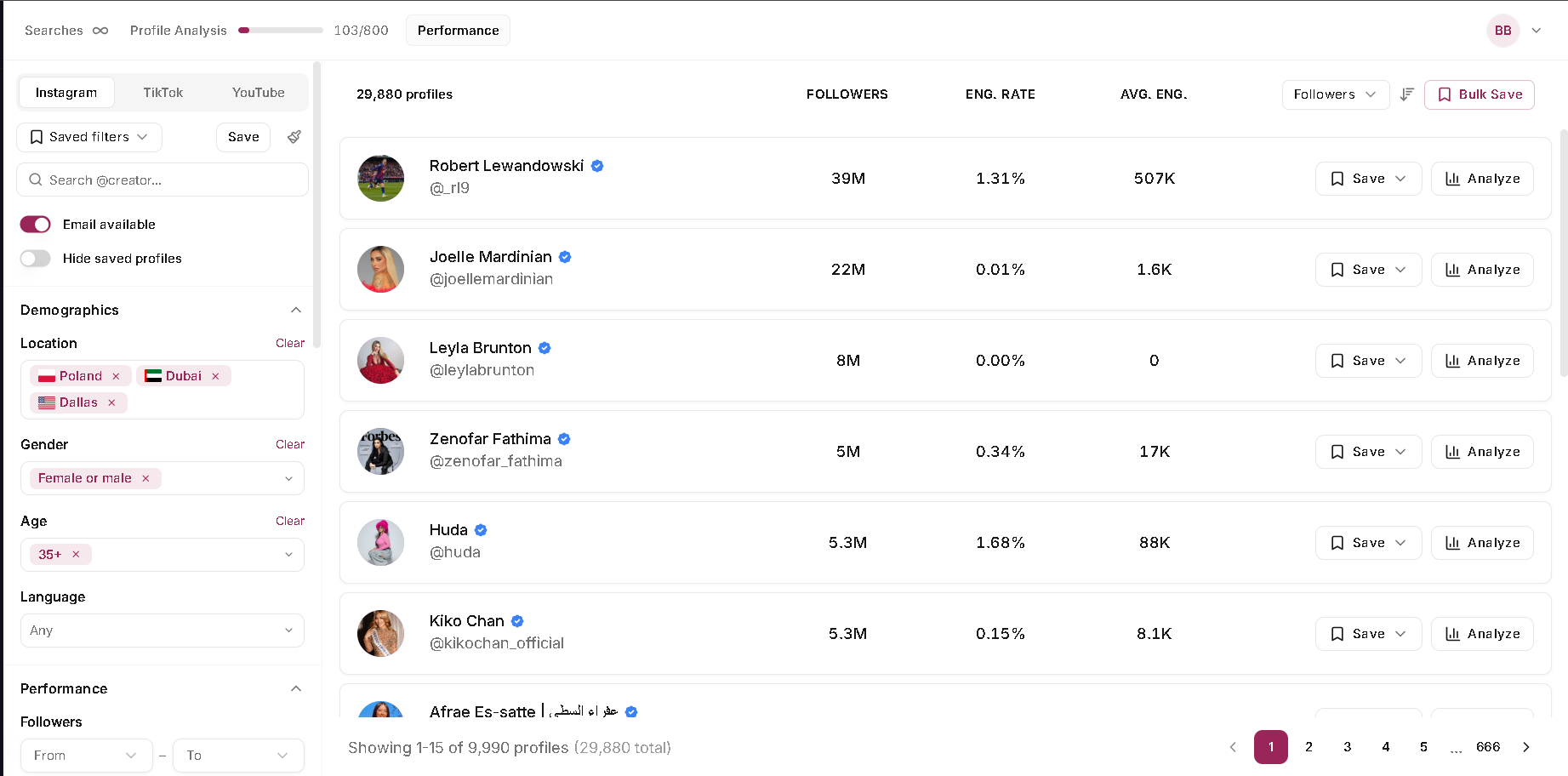
Open Discover from the left sidebar. The platform tabs sit at the top of the filter panel, the main filters stay on the left, and the creator results load on the right. That layout matters because your first job is not to inspect profiles. It is to shape the pool before you start opening anything.
- Click Discover in the left sidebar.
- Pick the platform tab you want to search first.
- Start in Demographics and add the few audience filters you know are non-negotiable.
- Add one performance filter only if it helps you remove obvious misses.
There is no Apply button. Discover refreshes results automatically after a short delay when filters change. If the list collapses too hard, remove the last filter you added before you touch three more things at once.
Set up your first creator search around the audience
Most teams lose time by filtering for creator size first and trying to reverse engineer audience fit later. Leewou gives you better leverage when you start with who the creator reaches and only then tighten the creator profile itself.
- Use Location for the countries or cities that matter to the campaign.
- Use Gender and Age when the product or market clearly skews one way.
- Use Language if the campaign depends on creators who can post or reply in a specific language.
- Turn on Email available when contactable creators matter more than broad research.
- Turn on Hide saved profiles when you are rerunning the same brief and only want fresh names.
After that, use the Performance, Content, and Account sections to clean up the shortlist. That is where follower range, engagement rate, keywords, credibility, and platform-specific filters help you remove noise without guessing from profile photos and bios.
Pro tip: Start with audience fit, then tighten creator size. Teams usually waste the most time doing it the other way around.
Know what costs Searches and what costs Profile Analysis
The header shows two separate credit meters because Discover and Analyze are different actions. That matters on your first pass because you should not spend analysis credits on every creator who looks decent at a glance.
- Searches are used when you run or rerun a creator search in Discover.
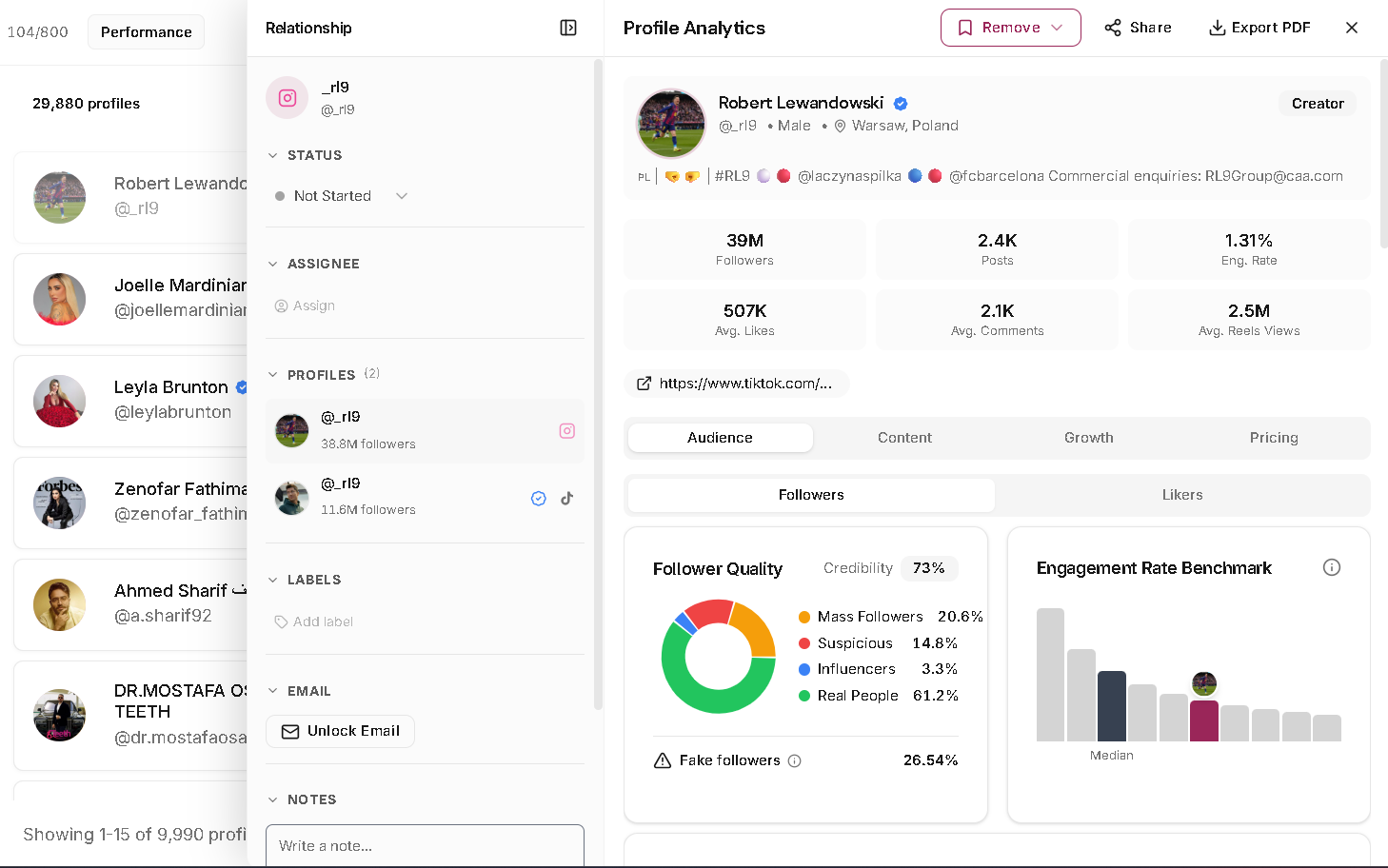
- Profile Analysis is used when you click Analyze on a creator row and open the full profile analytics view.
- The trial includes 40 Searches and 20 Profile Analysis credits.
- Paid plans move Searches to unlimited and raise monthly Profile Analysis capacity by plan.
Use the results table as your first pass. You can already compare follower count, engagement rate, and engagement volume there. Open Analyze when a profile looks close enough to deserve a deeper look, not as a reflex on every row.
Save good matches while the search is still fresh
Once the results feel close, start saving clear fits before you keep browsing. That stops the shortlist from drifting and gives you something concrete to review with the team even if the search still needs another pass.
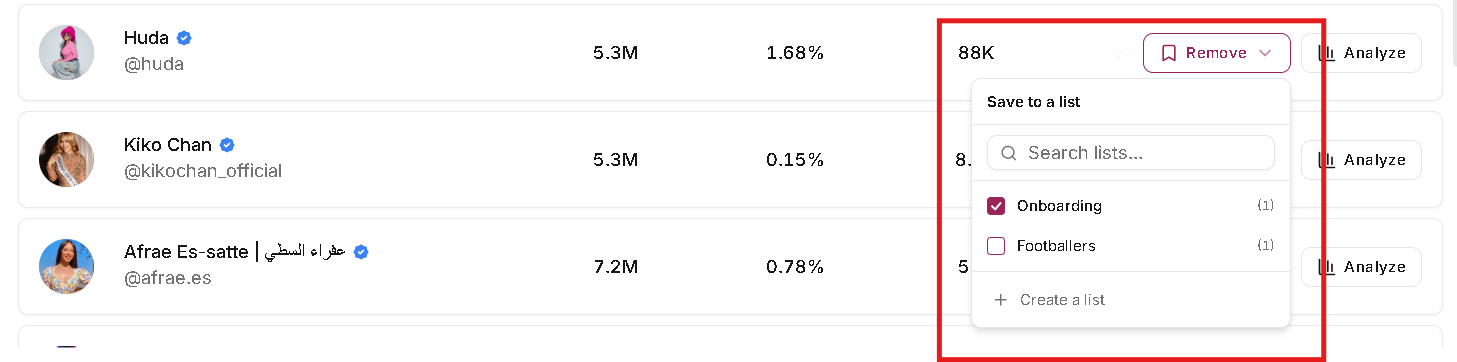
- Click Save on the creator row you want to keep.
- Search your existing lists or choose Create a list inside the popover.
- Save the obvious fits first so the list starts clean instead of turning into a parking lot for maybes.
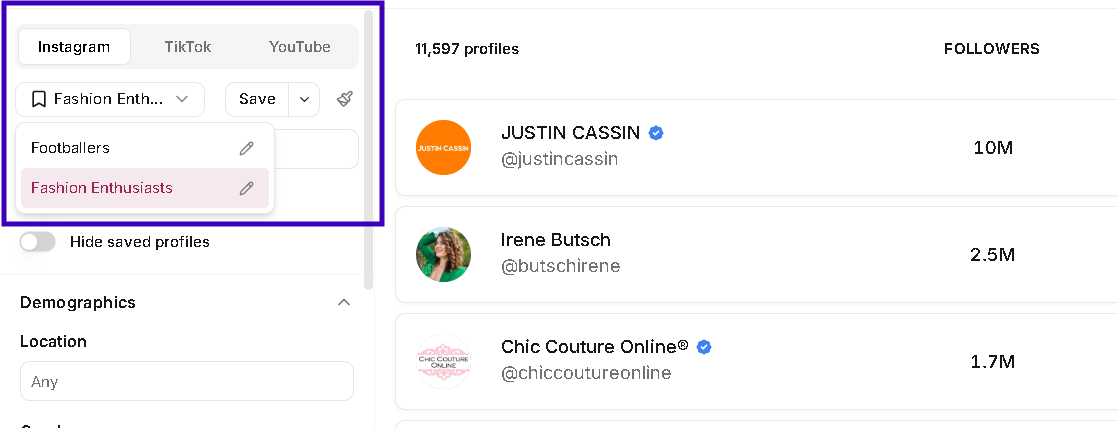
- If the filter setup is worth reusing, save it from the Saved filters area at the top of the sidebar.
If you are on a paid plan, Bulk Save can move a larger batch into a list faster. Trial workspaces should expect to save creators one by one.
Pro tip: Name saved filters after the campaign, market, or audience. Future you will not remember what test meant.
Keep the second pass clean
The first search rarely produces the final shortlist. The good news is the workflow is built for iteration, so use the cleanup tools instead of rebuilding the search from zero every time.
- Turn on Hide saved profiles when you rerun the same brief and only want fresh candidates.
- Use Clear all if the filter stack drifted too far. It is faster than rescuing a bad setup one field at a time.
- Hide profiles deliberately. It is useful for cleanup, but it should not be a random click.
- Tighten broad searches early. If Discover warns that only the first 9,990 creators are accessible, your brief is still too wide.
A good first creator search should leave you with three things: a shortlist you would actually discuss with your team, a saved filter setup you can rerun, and a clear sense of which profiles deserve full analysis next.
FAQ
Frequently asked questions about your first creator search
These are the questions that usually come up once someone moves from testing Discover to using it for a real campaign.