How to build a creator shortlist faster in Leewou
Build a creator shortlist faster in Leewou by sorting results well, using Analyze at the right time, and making cleaner keep or cut decisions.
A creator shortlist gets slow when every decent row turns into a full analysis. Most teams do not need more profiles. They need a faster first pass. Leewou already shows enough in Discover to help you build a creator shortlist before you spend time opening every profile.
Start with a result set you can actually compare
If a search still returns a giant pool, do not rush into shortlisting. Clean searches make good shortlists. Messy searches make busywork. Your first page should already feel like real candidates, not a pile of profiles you hope will get better later.
- Get the audience and performance filters close enough that the first page already feels relevant.
- Keep the search broad enough to compare different options, but narrow enough that you are not reviewing creators from three completely different tiers.
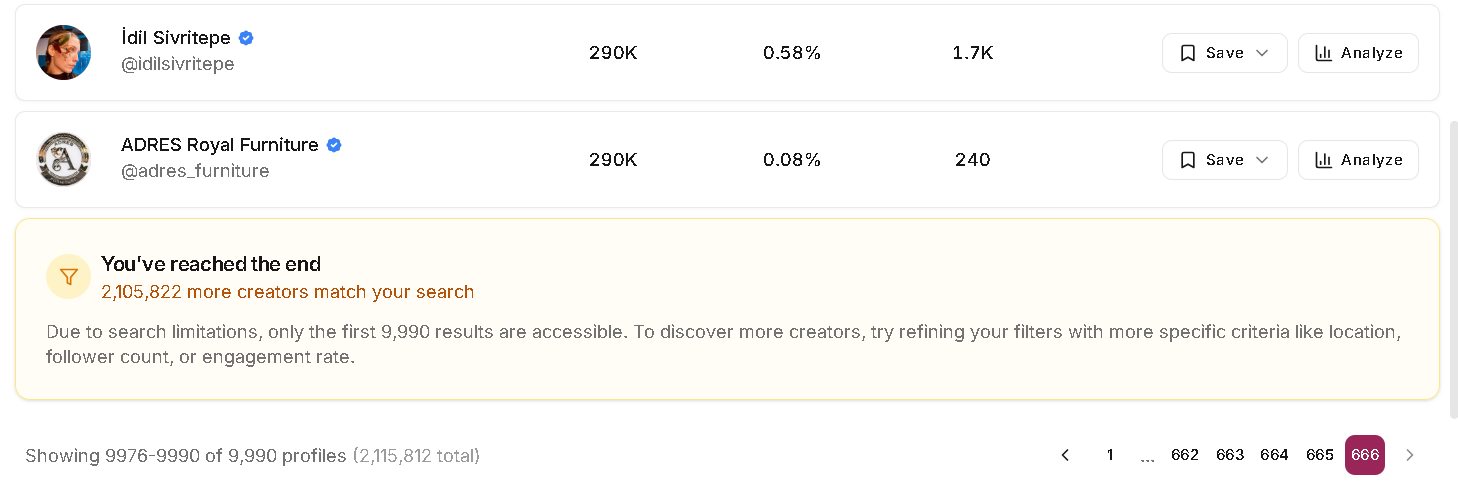
- Treat huge totals as a warning. If the search grows past the accessible limit, tighten the brief before you start saving names.
Pro tip: A shortlist works best when the first page already contains real candidates. If page one is weak, the search is weak.
Sort the list around the campaign goal
The results header gives you a sort dropdown and a direction toggle. Use them. Sorting is the fastest way to change what the first twenty minutes of review look like, and it is one of the easiest ways to stop shortlisting by vibes.
- Instagram lets you sort by Followers, Engagement Rate, Engagements, and Posts Count.
- TikTok adds Views, Shares, and Saves, which helps when the brief is more about content spread than profile size.
- YouTube swaps Followers for Subscribers and uses Avg Views, which makes more sense for channel review.
If you are buying scale, sort by Followers or Subscribers first. If you are buying response, start with Engagement Rate or Engagements. If you are testing content that needs travel, TikTok Views, Shares, or Saves usually tell you more than follower count alone.

Read the row before you open Profile Analytics
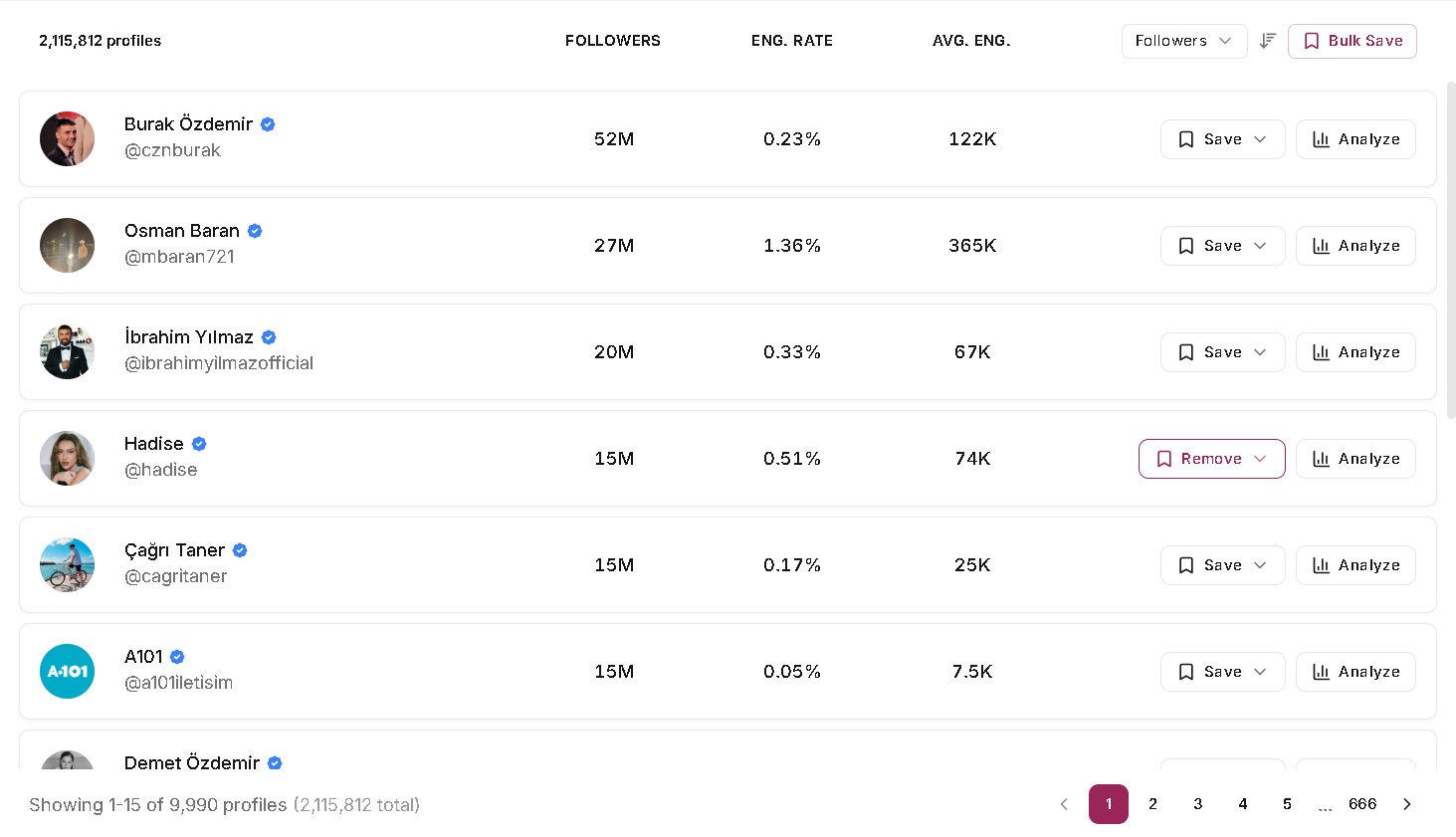
Every result row already gives you a lot: creator name, verified badge, handle link, follower or subscriber count, engagement rate, average engagement, Save to list, Hide profile, and Analyze. That is enough to eliminate a surprising number of maybes before you touch the sidebar.
- Use the handle link when you need a quick public profile check without leaving the shortlist workflow.
- Use follower size and average engagement together so you do not overvalue either raw scale or pure percentage.
- Use Save to list for clear yeses, not for everyone who looks fine.
- Use Hide profile for clear noes so the same miss does not keep coming back.
Analyzed profiles also fade slightly in the list and show when you last opened them. That is useful when more than one teammate is reviewing the same search or when you come back to it later and need to remember what already got deeper review.
Use Analyze on finalists, not on every maybe
The Analyze button is where you move from first-pass screening into Profile Analytics. Use it when the row already looks close. That keeps the shortlist moving and makes each profile review feel deliberate instead of automatic.
If your team reviews a lot of profiles in one sitting, profile settings can skip the Analyze confirmation prompt. But the bigger win is still discipline. Open the profiles that earned it from the results table first.
Note: Profile Analytics is for confirmation and deeper context. It should not be the tool you use to rescue a weak search.
Save clear yeses, hide clear noes
The cleanest shortlists come from quick, confident decisions. Save strong fits as you go. Hide obvious misses as soon as you spot them. Do not keep both groups in the same pool and promise yourself you will clean it up later.
- Use Save to list when the creator is worth reviewing with the team.
- Use Bulk Save when you want to move a larger batch into a list. One bulk save job can include up to 1,000 creators.
- Use Hide profile when a specific creator is a bad fit and you want them out of the way.
- Unhide from Manage > Hidden profiles if you change your mind.
Tighten broad searches before you hit the wall
Discover can show the total number of matches and the accessible number of profiles. If the footer says you are only seeing the first slice and the results page ends with a warning, the search is still too broad for real review.
When that happens, do not keep paging. Add one specific filter that reflects the brief, usually audience location, follower range, engagement rate, or a content keyword. Shortlisting from a capped search usually means the best profiles are buried somewhere the UI cannot reach yet.
FAQ
Frequently asked questions about building a creator shortlist
These are the questions that usually come up once a team tries to turn a search result into a usable shortlist instead of a parking lot for maybes.